
With the world at their fingertips, family safety is more important than ever. Knowing what your children are doing online is a major concern for most parents. On top of that, there’s the challenge of managing “screen time”: no one wants their kids spending every free minute in front of a computer or phone. This is exactly where a parental control app can make a difference.
Fortunately, Salfeld Child Control helps you address these issues and more. By installing the software or app on the devices your children use, you can set clear time limits, manage screen time, and support healthy digital habits. Limits can even be shared across multiple devices, so your child’s time is tracked consistently whether on Windows or Android. You can also group apps into categories (like games or social media) and apply limits to the entire group, keeping things simple and effective.
With Child Control, parents get the tools they need to guide their children’s device use and keep family life in balance.

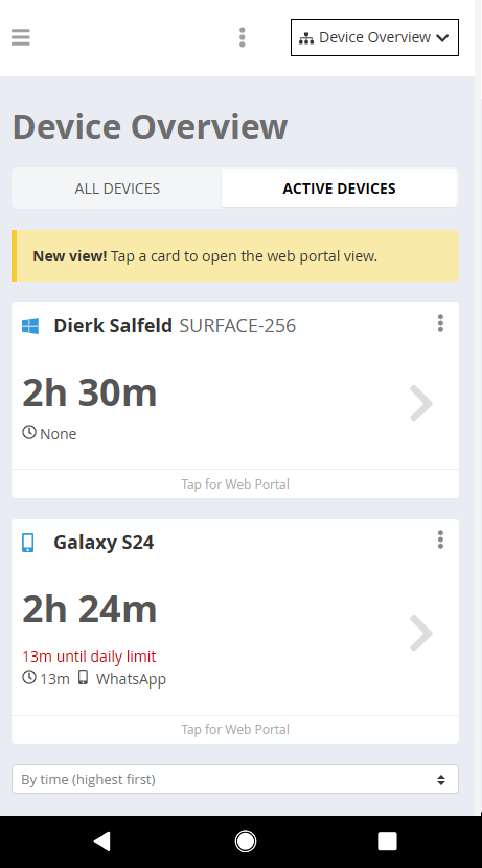
Child Control lets you decide how long your children can use the computer or smartphone each day. You can also set weekly or monthly limits.
Once the limit is reached, the computer shuts down automatically and the smartphone shows a lock screen after a few warnings you define — easy for every child to understand.
From our experience: while kids may object at first, clear limits set by the software are usually accepted without much resistance.
Learning apps and programs you set to “Allowed PLUS” stay available after the limit is reached. If you like, your child can even earn bonus time with them – you choose this for each app.
The internet can be a great place, but it also comes with risks. Many parents worry that their children might stumble onto inappropriate sites by accident. With Child Control, you can set up web filters that block unwanted content by category or age, or simply allow access only to a predefined list of safe sites. Everything else stays off limits.
You can also limit access to specific websites for a set period of time — for example, to prevent your child from spending hours on an online game instead of focusing on homework.
Free for 30 days. No credit card. No subscription.
Manage all Child Control settings easily through the web portal. You can log in from any standard browser (including iPhone, iPad, or Mac) or use the dedicated parent app.
In the reports section of the web portal, you’ll always know what’s happening on your child’s PC or mobile device. If a page is blocked by mistake, you can unblock it right away. You can also choose to receive daily or weekly email reports for a clear overview.

With Roaming, screen time is counted across all devices your child uses. This prevents kids from simply switching to another device once a limit has been reached. Just enable Roaming in the web portal, and time from all linked devices is tracked together under one shared limit.
Reward your child with extra screen time using a simple Time Code (a 6-digit number). You decide when to give it—after homework, chores, or any other milestone. Kids can enter the code to unlock the extra time you’ve set. You can also mark certain apps as “bonus apps,” so extra time is added automatically. First learn, then play. See 15 ad-free learning apps that work well as bonus apps.
Free for 30 days. No credit card. No subscription.
